
Simulated portfolio
Test purchases and resale scenarios separately from real holdings.
Why simulate?
The simulated portfolio tracks an idea without claiming you own the cards. Its purchases, sales, indicators and alerts stay separate from real holdings.
Add a simulated purchase
- Open Invest on a card, or Add an investment in the simulated portfolio.
- Enable Fake investment.
- Set the scenario’s unit price, quantity and date.
- Review the totals and select Save fake purchase.
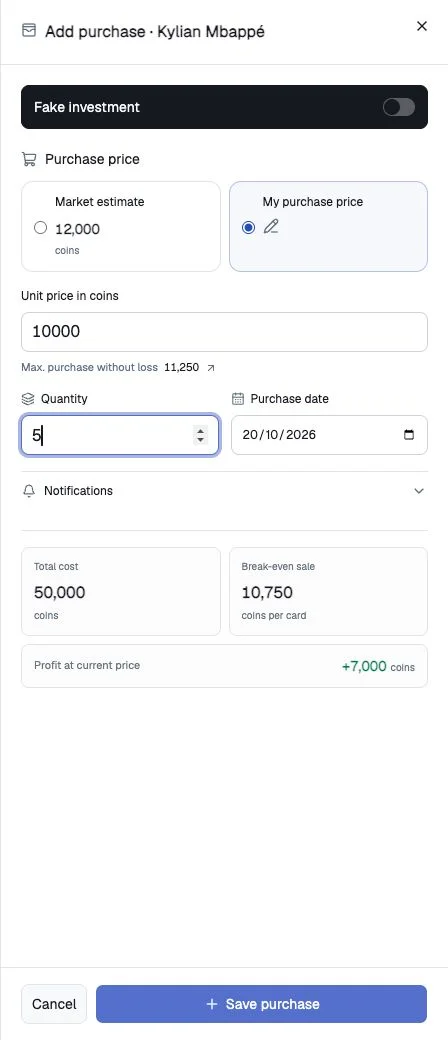
The screenshot shows the switch off; turn it on for a simulation.
Find and track the scenario
Select Simulated portfolio in Portfolio and check the selected Console/PC market. Real and simulated positions can coexist for the same card without mixing their lots. Simulations use the same tax and valuation calculations, but their returns are scenario results, not gains on cards actually held.
Simulate resale
Open Record sale in the simulated portfolio. Check the simulated label, enter quantity and price, then select Save fake sale. Only simulated lots are consumed. Full sales history also has a simulated mode; keep these results separate from actual sales.
Simulated alerts
A simulated position can have a Discord alert. Its private message identifies the simulation and uses the remaining simulated quantity.
Make an actual purchase later
A scenario never converts itself into real holdings. If you later buy the cards in the game, add a new real purchase with the actual price and date, leaving Fake investment off. Keep the scenario for comparison or remove its lots if no longer needed.
Correct the wrong mode
Delete an incorrectly classified lot and recreate it in the intended mode. First check market and history to avoid entering the same purchase twice.