Settings
Manage your profile, market, appearance, Discord connection and account security.
Open Profile and settings
Use the account icon at the bottom of the application sidebar. On narrow windows, a section selector replaces the settings navigation.
| Section | Purpose |
|---|---|
| My account | Email, username, club and desktop updates |
| Appearance | Light, Dark or System theme |
| Market | Console or PC market |
| Plugins | Licence activation and Discord alert recipient |
| Password & security | Password recovery |
Edit your profile
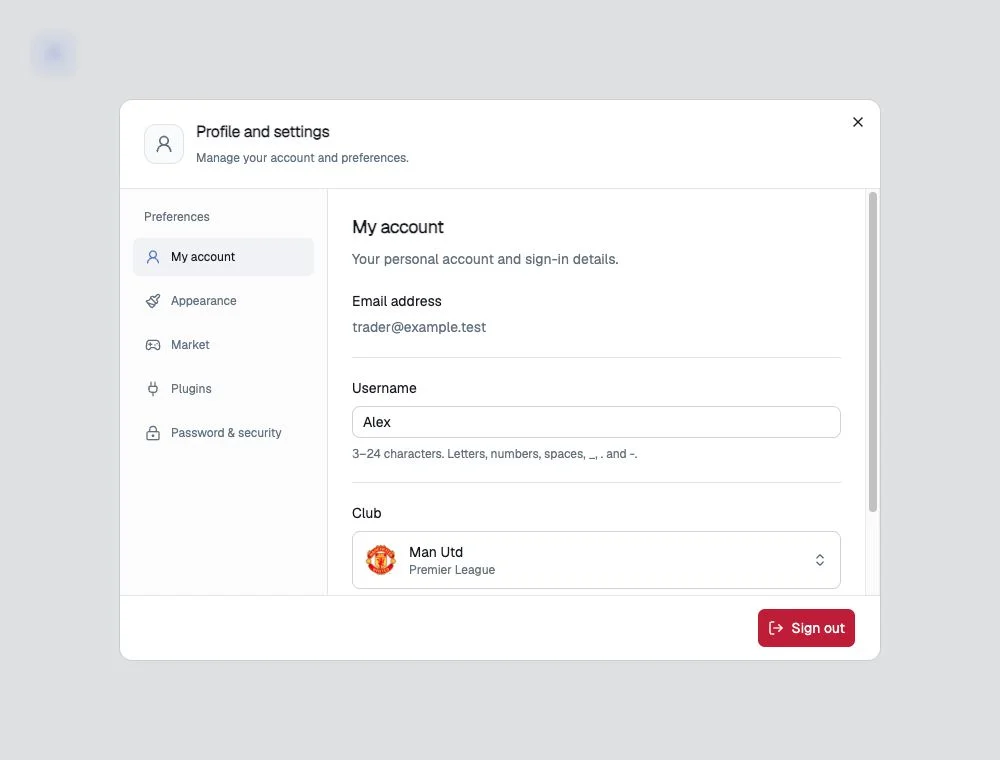
In My account, change your username or club and select Save profile. Usernames must contain 3–24 characters. The displayed email helps confirm that you are using the intended account.
Choose Console or PC
In Market, select Console for PlayStation/Xbox or PC. Changes save automatically.
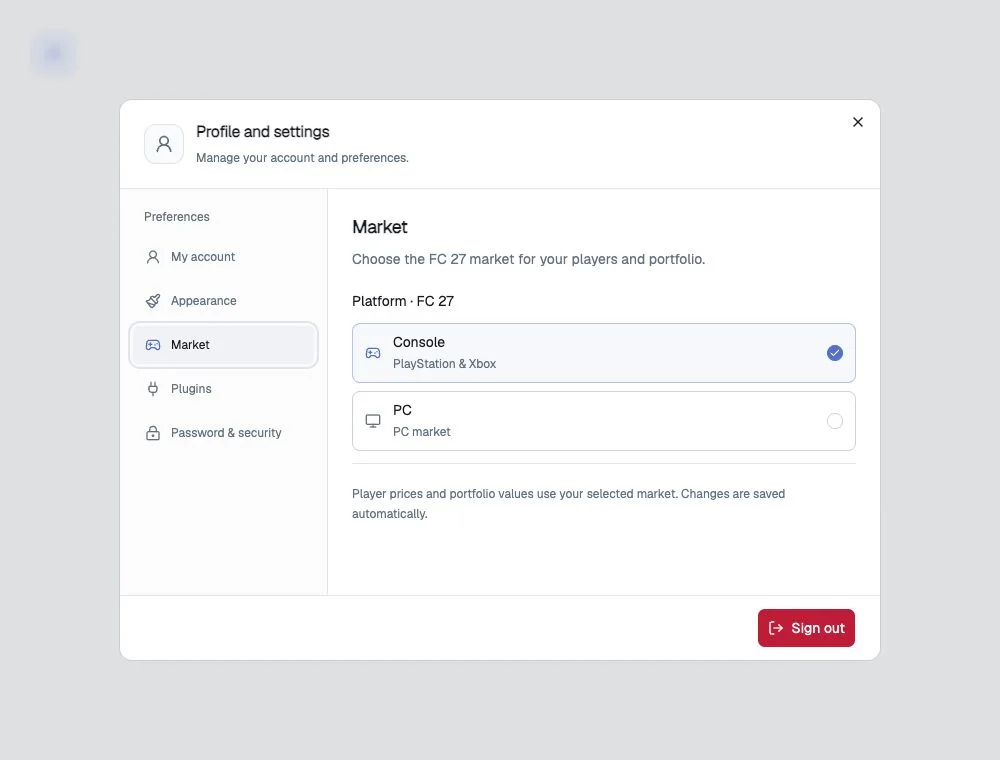
Markets have different prices. Existing purchases keep their original market: switching does not convert or delete them. If the portfolio looks empty, check the previous market and the real/simulated selection.
Choose appearance
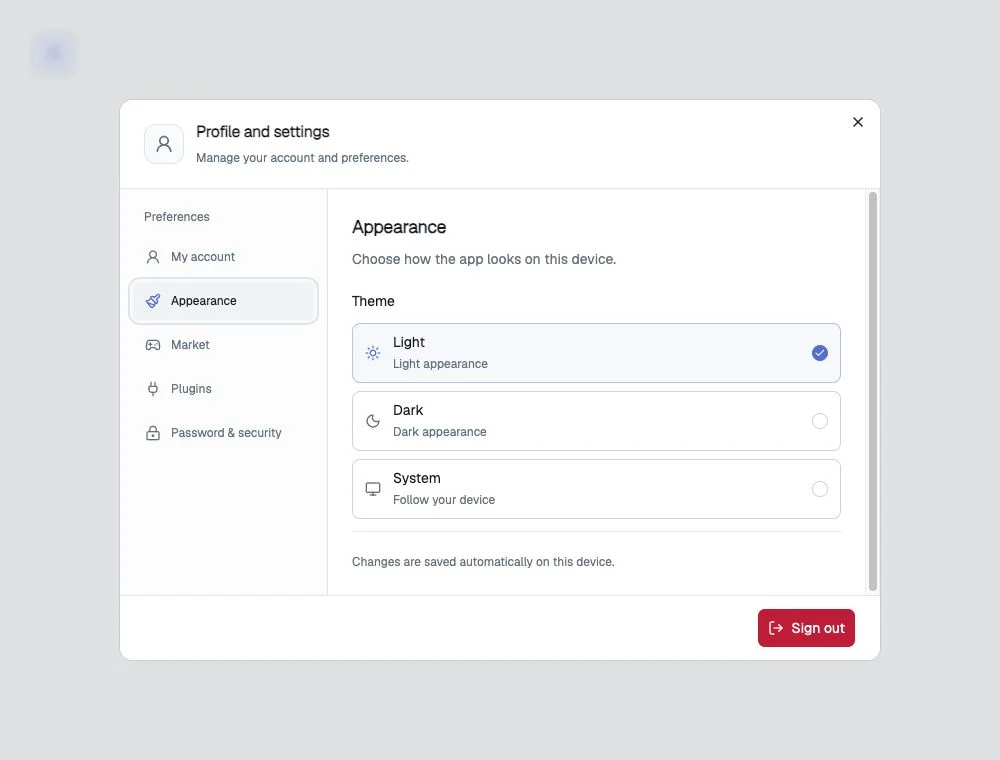
In Appearance, select Light, Dark or System. System follows the device preference. Changes save automatically on that device.
The documentation has no theme selector at the bottom of its sidebar.
Connect Discord
Open Plugins → Discord and activate your personal key if not already linked. Licence and Discord explains /request-key. Alert conditions are configured in investments, separately from appearance and market settings.
Security and updates
Password & security opens password recovery; see Account and sign-in. Desktop updates in My account checks for new versions; see Installation.