
Account and sign-in
Register, confirm your email, sign in and recover access to FutCall.
Register by email
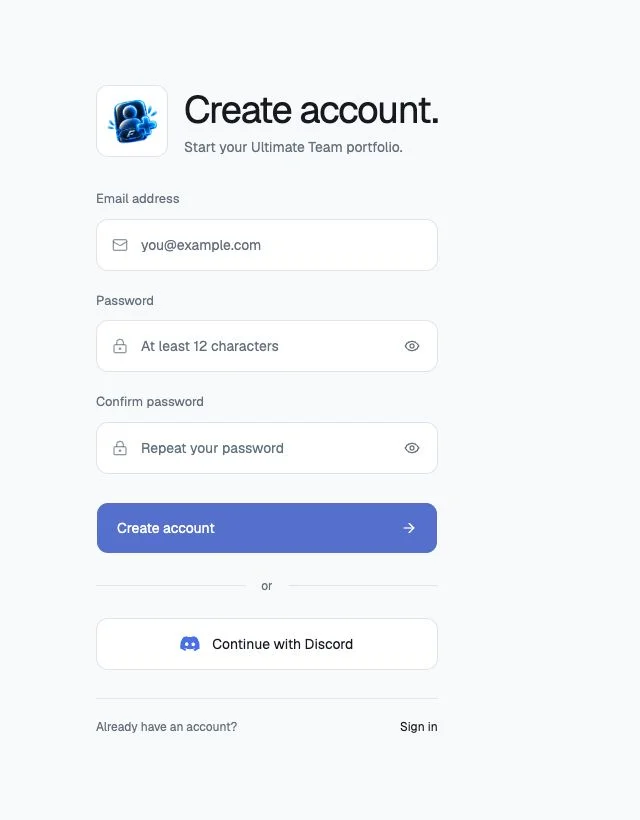
In the application, choose Create an account. Enter an email address you can access, choose a password of at least 12 characters, repeat it in Confirm password, then select Create account.
Confirm your email
Open the confirmation email and follow its link back to FutCall. Alternatively, copy its code into Verify your email → Code from your email and select Confirm email.
Check spam and the entered address if the email is missing. Resend confirmation email requests another message. Use the most recent email; older links or codes may expire. If the link does not open the application, keep FutCall open and enter the code there. Never post verification codes in Discord channels.
Sign in
Enter your account email and password, then select Sign in. Complete email verification if prompted.

Continue with Discord
When available, Continue with Discord opens Discord authentication. Use the intended Discord account and return to FutCall to complete any remaining profile and activation steps.
Discord sign-in authenticates you; the free licence activates access and links the alert recipient. An email account can activate a Discord key without changing its sign-in method. See Licence and Discord.
Set up your profile
Choose a username of 3–24 characters and a club. Letters, numbers, spaces, _, . and - are accepted. Next select Console or PC and activate the licence.
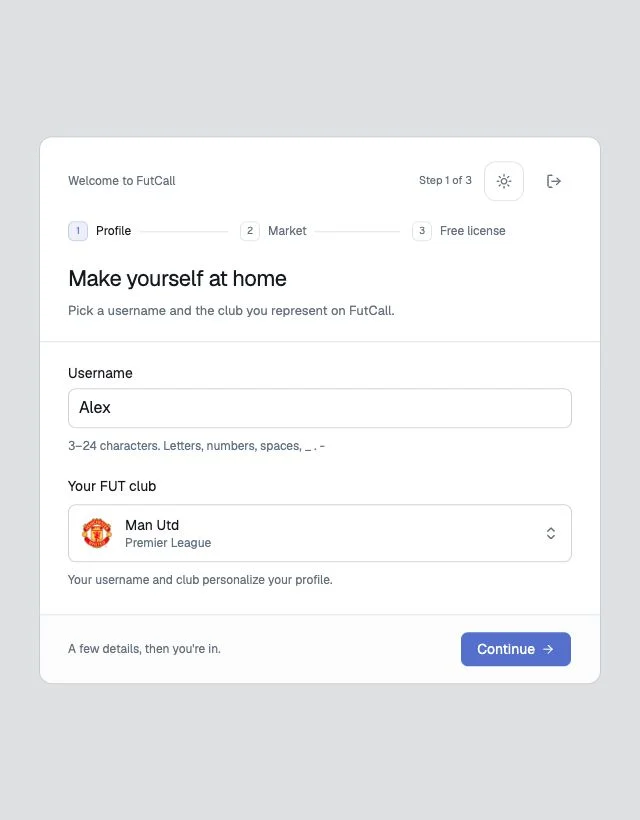
Later, edit your name and club in Profile and settings → My account, then select Save profile.
Recover a password
Select Forgot password?, enter your account email and request the recovery message. Follow its link or use the code in the app, then set and confirm a new password of at least 12 characters. Password changes revoke existing sessions; sign in again on affected devices.
Sign out
Open the account icon at the bottom of the sidebar and select Sign out. Saved operations remain associated with the account. See Troubleshooting for access problems.