
Sales and history
Record total or partial sales, read after-tax results and find older sales.
Record an actual sale
After selling in the game or its official tools, select Record sale on the position. FutCall records the operation; it does not list or sell the card for you.
Total or partial sale
- Verify market and real/simulated portfolio.
- Open Record sale and enter Quantity to sell, from 1 to remaining quantity.
- Select Manual price for your actual sale price per card, or review Market price / Market estimate.
- Set Sale date, consistent with the consumed purchases and not in the future.
- Review the summary and select Save sale.
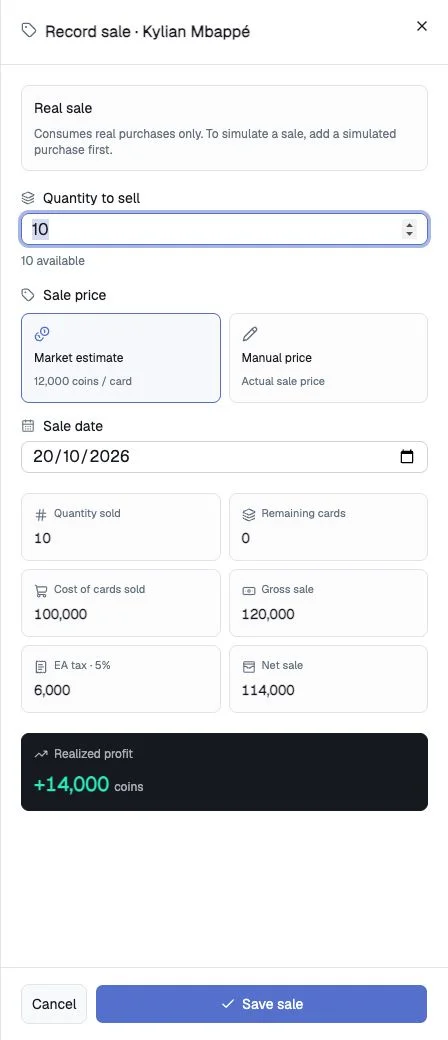
Prices must respect FUT increments and range from 150 to 15,000,000 coins. Record separate sales for groups sold at different prices.
Lot allocation
The oldest purchases are consumed first (FIFO, first in, first out). Sale cost uses the actual consumed lots rather than necessarily the position-wide average.
For two cards bought at 10,000 and two at 12,000, selling three consumes both 10,000 cards and one 12,000 card: cost is 32,000. One 12,000 card remains.
Read the result
| Amount | Meaning |
|---|---|
| Gross sale | Unit sale price × quantity |
| EA tax · 5% | Per-card tax added across sold cards |
| Net sale | Proceeds after tax |
| Realized profit | Net proceeds minus consumed lot cost |
| Remaining cards | Quantity still open |
Five cards bought for 10,000 and sold for 12,000 each produce 60,000 gross, 3,000 tax, 57,000 net and 7,000 realized profit. Sales can realize losses. Their saved outcome does not change with later market prices.
Full history
Select View full sales history to open Sales history, including sales recorded over 24 hours ago. Select real/simulated mode, search a player, set sale-date filters and use pagination. Apply filters applies changes; Clear history filters resets them.
Correct prices
Where available, Edit opens a sale’s purchase-lot prices and unit sale price. Check the corrected cost and net proceeds, then Save changes. This corrects amounts without creating another purchase or sale. Quantity and consumed lots cannot be changed in this form; ask for help with those errors without sharing credentials.
Simulations and deletion
Save fake sale consumes only simulated lots. Real sales consume real purchases. Deleting a lot or position never substitutes for recording a sale and creates no realized profit.